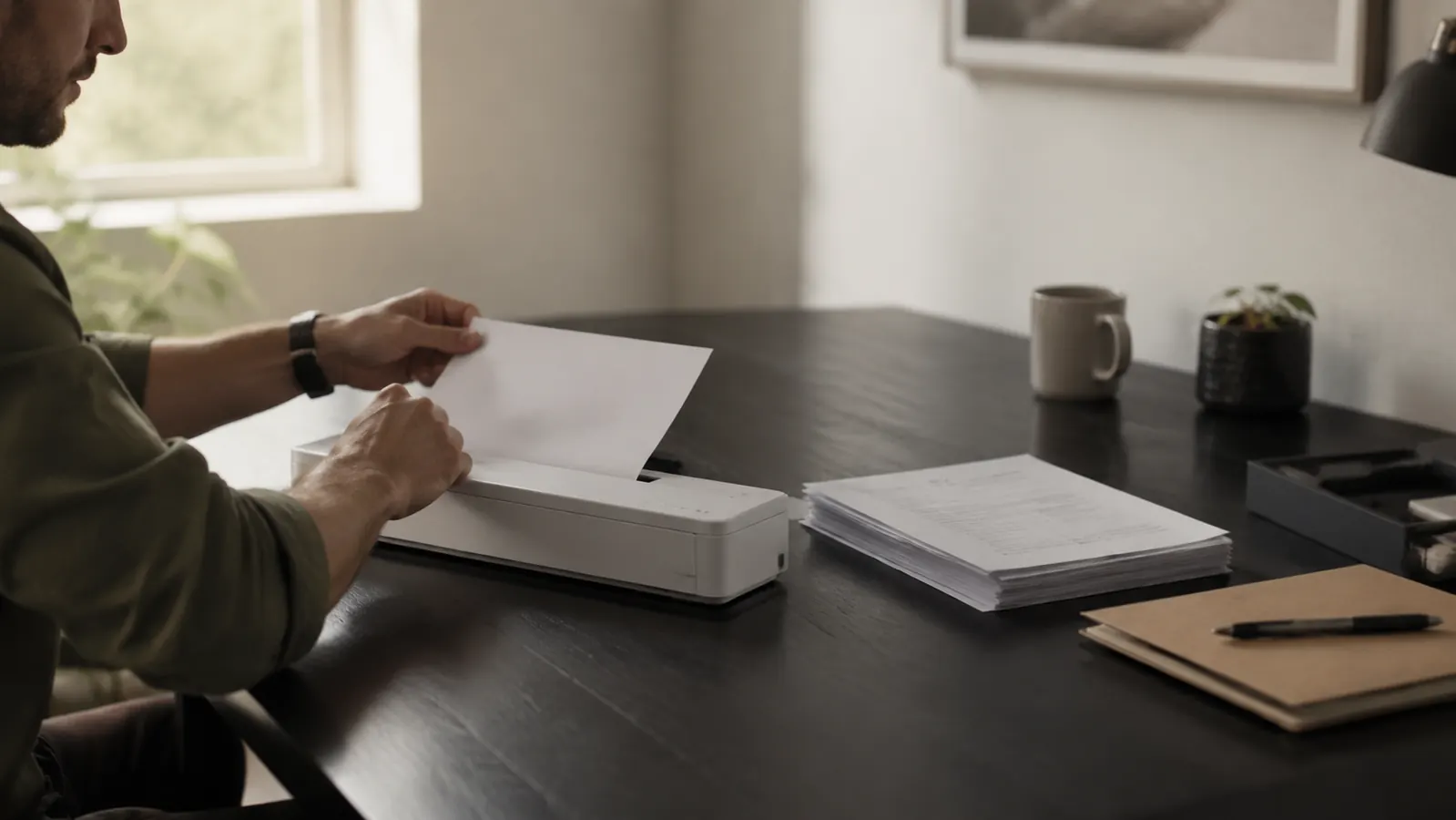
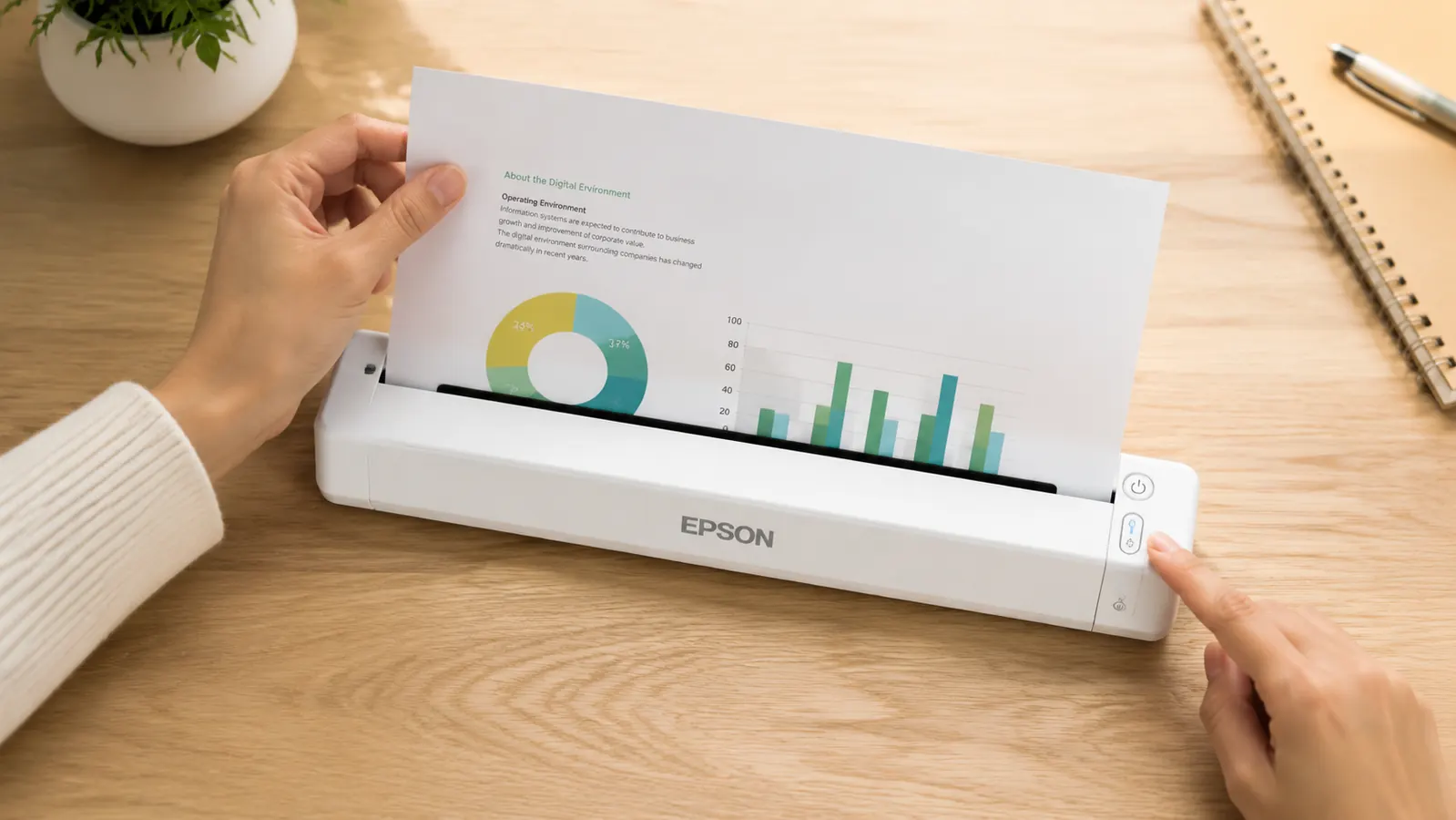
The Epson WorkForce ES-50 is listed as a portable sheet-fed document scanner. That is accurate. It is also incomplete in ways that matter to how you will actually use it. I have been using this scanner in my home office for a while now, and I want to tell you four specific things the listing page glosses over, because each one is a real constraint that determines whether the ES-50 is the right fit for your workflow or the wrong one. If you are a Mac user on a recent OS, or if you regularly scan double-sided documents, or if you were expecting WiFi, or if you thought OCR just worked out of the box, read this before you buy.
None of these are dealbreakers for the right person. I still use the scanner and I still recommend it for a specific type of home office user. But I got my information about it the hard way, by running into each of these walls in turn. You should not have to.
The Quick Verdict
A capable, genuinely compact scanner for light home-office document work. Right tool for the right person. Wrong tool if you need duplex, WiFi, or instant setup on newer macOS.
Amazon Check Today's Price →The ES-50 earns its cost if your scan volume is light and your desk space is tight. Check stock before reading further.
Affordably priced, USB-powered, no wall adapter. If your workflow fits within its constraints, it is one of the better portable scanners from a name brand with actual driver support.
Amazon Check Today's Price on Amazon →How I Use the ES-50 Day to Day
My scan pile is not heavy. I run a small home office doing freelance project work. Paper comes in as invoices, signed agreements, insurance forms, a small parade of receipts I need to keep for records. I do not scan hundreds of pages a week. I scan maybe ten to thirty pages in a week when things are busy, nothing in a quiet week. The ES-50 sits on the right side of my desk, plugged into my laptop's USB-A port via the bundled cable. When something needs to go digital, I feed it through and move on.
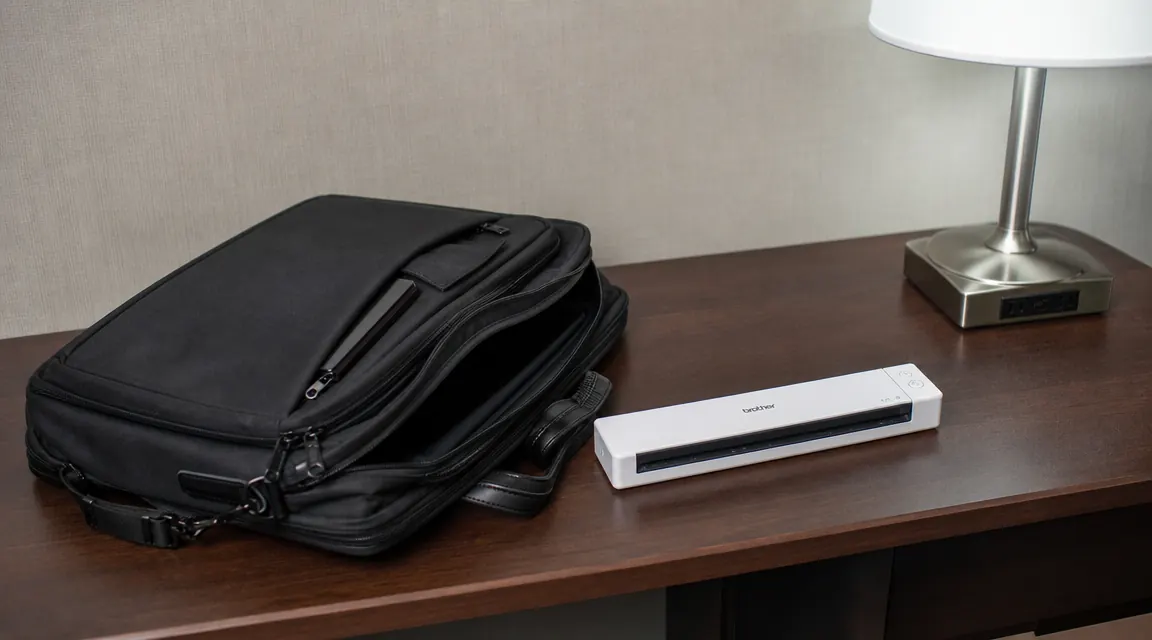
On that use pattern, the scanner delivers. The scans are sharp and consistent at 300 DPI for text documents. The footprint is genuinely small. I have traveled with it in my laptop bag for short work trips and used it in hotel rooms without needing anything other than the one USB cable. The physical build is solid for its size and price. I have not had a single paper jam on standard document paper.
But within the first two weeks of owning it I ran into all four of the things I want to tell you about. Each one cost me time I should not have had to spend. Here they are.
Gotcha One: Mac Setup Is Not Plug-and-Play on Newer macOS
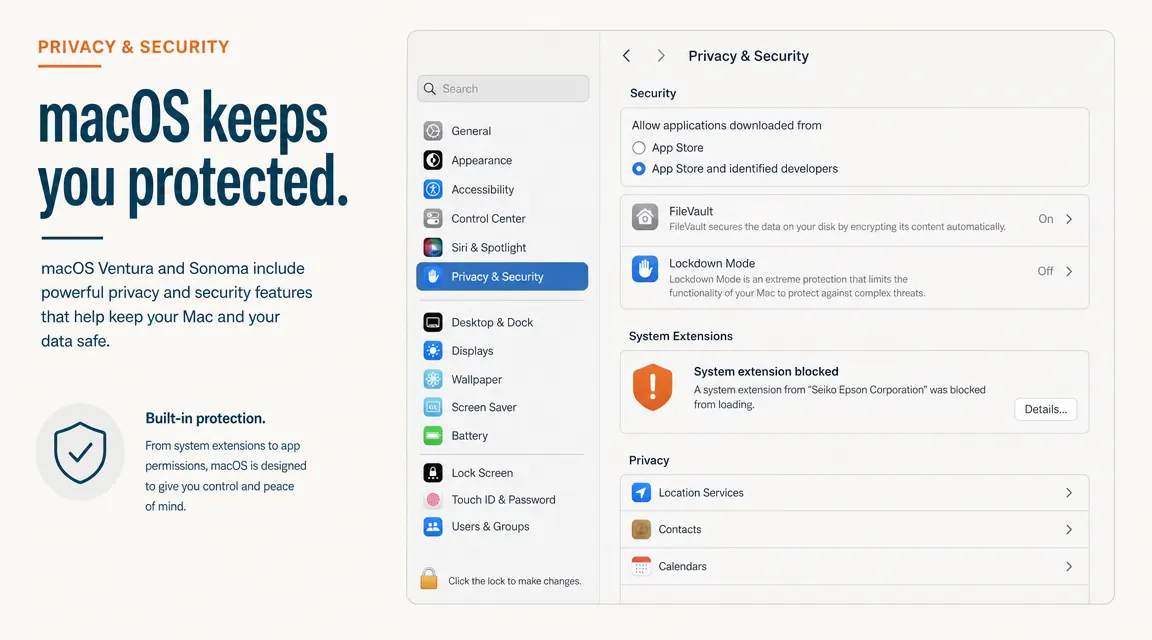
I am on a MacBook Pro running Sonoma. When I installed the Epson driver package, macOS immediately blocked it. The scanner did not show up anywhere. There was a notification that a system extension from Seiko Epson Corporation had been blocked, and I had to go into System Settings, then Privacy and Security, scroll down to find the blocked extension, click Allow, and then restart the machine. None of this is dramatic, but none of it is what the unboxing experience implies.
After the restart, the scanner worked. Then macOS pushed a point update three weeks later and the extension prompt came back. Same process, same restart, same twenty minutes I had not planned for. I am not saying this is Epson's fault entirely, Apple has been tightening kernel extension rules for several versions now. But I am saying that if you are a Mac user expecting a two-minute setup like you get with a USB keyboard, set aside half an hour and bookmark Epson's support page before you start.
Windows users have reported no equivalent friction. If you are on Windows 10 or 11, the driver installs cleanly and the scanner just appears. The Mac issue is real but it is also containable once you know what is coming.
Gotcha Two: One Page at a Time, One Side at a Time
The ES-50 is a sheet-fed scanner. You feed one page, it scans one side of that one page, it ejects it from the front. You pick it up and feed the next page. There is no automatic document feeder where you load a stack and come back when it is done. There is also no duplex, meaning there is no automatic two-sided scanning. Two-sided documents require two passes: scan the front, flip the page, scan the back. Every time.
For documents where both sides carry unique content, the math adds up fast. A ten-page double-sided contract is twenty separate feed operations. A batch of thirty statements that are printed on both sides is sixty manual insertions. At that volume the process goes from a background task to a thing you have to stand at your desk and supervise start to finish. I had one day where I needed to digitize a packet of insurance renewal documents, twelve pages, all double-sided, and the ES-50 turned a job I expected to take four minutes into one that took closer to twenty.
If most of your documents are single-sided, this does not surface. Bank statements are usually single-sided. Receipts are single-sided. Basic contracts are often single-sided on the pages that matter. My use mostly falls in that category, which is why I kept the scanner. But if you deal regularly with documents that are printed on both sides, the Brother DS-740D handles automatic duplex in a single pass and is worth looking at. The comparison between the two is on this site if you want to run through the specifics.
Gotcha Three: USB Cable, USB Cable, and Nothing Else
The ES-50 does not have WiFi. It does not have Bluetooth. It does not have any form of wireless connection. It connects to one computer via one USB cable, and that is the full list of ways to use it. This is not buried in fine print. It is technically visible in the specifications. But the way scanner marketing is written in 2026, with talk of going paperless and digital workflows and cloud integration, it is easy to picture a more connected device than this one actually is.
What this means in practice: if you want to scan something and have it appear on your phone, you can do that, but only by scanning to your computer first and then routing the file through cloud storage like Google Drive or iCloud. There is no direct scan-to-phone path. If two people in your household want to use the scanner on different computers, one of you is going to be physically unplugging the cable from one machine and walking it to the other. There is no shared network access, no scan-from-anywhere capability. The scanner is a peripheral for one computer.
For a single-person home office where everything routes through one machine anyway, none of this matters. For a household where the scanner needs to be shared, it is a real inconvenience that compounds over time. The cable is also on the short side at around four feet, so where your desk is relative to your USB ports matters.
Gotcha Four: OCR Requires a Setup Session. It Is Not Just There.
Optical character recognition is supported. That is true. What the marketing material implies is that you scan a document and it becomes a searchable PDF. What is actually true is that OCR runs through Epson's Document Capture software, which you download separately from Epson's website after you have already installed the driver. The software is free. It is functional. But it is not pre-installed, it is not intuitive, and finding the setting that enables searchable PDF output requires navigating a menu structure that was clearly designed by someone who had never watched a first-time user try to use it.
I spent about twenty-five minutes on the day I first wanted a searchable PDF clicking through Document Capture looking for the right toggle. It is in the scan profile settings under the output format options, with a checkbox labeled something like Enable Text Searchable. Once you find it and set it as the default, it stays. From that point on, every scan to PDF is automatically searchable. OCR accuracy on clean printed text is very good. I have had virtually no recognition errors on standard printed documents, insurance forms, or contract language. But the setup investment to get there is real, and anyone who expects it to work out of the box will be sitting at their desk confused for a while.
Once you find the searchable PDF toggle in Document Capture and set it as your default, the OCR is actually very good. Getting there the first time is the part that takes longer than it should.
What the ES-50 Actually Does Well Once You Are Past the Setup
I want to be fair to this scanner, because after the setup friction is resolved, it works. The scan speed is fast enough that feeding pages feels like a light task rather than a chore. At 300 DPI the output quality is clean and consistent on any standard office document. Text scans are sharp enough to zoom in on 8-point fine print without pixelation. Color scanning on receipts is accurate enough for record-keeping. The scanner is genuinely quiet, noticeably quieter than a home printer.
The portable form factor is real and not marketing noise. It weighs under twelve ounces. The footprint when the scanner is just sitting on a desk is smaller than a hardcover book. You can carry it in the same bag as your laptop without thinking about it. It draws full power from your laptop's USB port, no wall adapter, no separate power cable. I have used it in a hotel room, a co-working space, and a borrowed desk in someone else's house without needing anything beyond the one cable that came in the box. For anyone whose home office moves around, that matters.
The paper handling is reliable on standard stock. I have run receipts, envelopes opened flat, standard printer paper, and thin billing statements through it without a jam. Thick cardstock and business cards are not its strength, but for the paper types most home office users actually accumulate, the feed is consistent. The unit also comes with a protective sleeve for fragile documents: slide thin or damaged pages into the sleeve and feed the sleeve through instead. It handles older documents and thermal receipts that would otherwise have a risk of catching.
What I Liked
- Genuinely compact, fits in a desk drawer or a laptop bag without trade-offs
- USB-powered with no wall adapter, one cable handles power and data
- Fast and quiet on single-sheet scans, clean output at 300 and 600 DPI
- Reliable paper handling on standard office documents and receipts
- Protective sleeve included for fragile, thin, or damaged documents
- Portable enough for real travel use, not just desk use
- OCR accuracy is very good on clean printed text once configured
Where It Falls Short
- Mac driver requires manual security approval that can reset after OS updates
- No automatic document feeder, every page is a manual single feed
- No duplex scanning, two-sided documents need two passes per page
- USB-only, no WiFi or wireless connectivity of any kind
- OCR requires a separate software download and configuration session to enable
- Short cable at roughly four feet limits desk placement flexibility
- Struggles with thick cardstock, business cards, and stiff materials
How This Compares to Just Using Your Phone
I want to address this because a lot of people thinking about the ES-50 are weighing it against phone scanning apps, which are free. Apple Notes has a built-in scanner. Microsoft Lens is free and genuinely good. Adobe Scan is free. If you scan three or four documents a month, the honest answer is that your phone is probably sufficient and you do not need to spend money on a dedicated device.
The ES-50 earns its cost over phone scanning when two things are true: your volume is regular enough that the ergonomics matter, and your documents need consistent flat scans rather than camera photos. Phone scanning depends on lighting, distance, and a steady hand. The ES-50 feeds the document through a controlled path and produces the same result every time regardless of the light in your room. For receipts you are going to look at once and archive, a phone is fine. For contracts you may need to refer back to, for tax documents that need to be legible at 200 percent zoom, for anything where image quality and consistency matter over a year of use, the sheet-fed scanner is the more reliable tool.
Who This Is For
The ES-50 is the right scanner for a home office user who generates a steady but light flow of single-sided documents, works from one computer, and values a small footprint over a rich feature set. If you scan receipts and statements for record-keeping, keep digital copies of contracts and insurance documents, and want a scanner that stores out of the way when you are not using it, the ES-50 covers that job reliably. Mac users should expect the driver installation to take longer than they hope and to potentially need attention after OS updates. That is the main thing to go in knowing.
It also works well for people whose home office moves. If you are in a different location week to week and still need to keep up with paper, a scanner that fits in a laptop bag and powers off a USB port is a legitimate solution. Most portable scanners at this price are from brands with weak driver support. Epson keeps its drivers updated, which matters more than it sounds when you are dealing with a macOS extension that can break on updates.
Who Should Skip It
If you regularly scan two-sided documents and do not want to manually flip every page, look at the Brother DS-740D. It handles automatic duplex at a similar price point and in a similarly compact footprint. I have a full comparison of the ES-50 against the DS-740D on this site that breaks down which one makes more sense depending on your document types.
If you want to scan from a phone or share a scanner between two computers without cable swapping, the ES-50 is not built for that. You need a WiFi-enabled scanner, which at this size means spending more, or you need a multifunction printer with network scan capability. The ES-50 is a personal peripheral, not a household one.
If your scan volume runs to fifty or more pages in a single session on a regular basis, the manual single-feed workflow will slow you down enough that it becomes an obstacle rather than a tool. At that volume you want a scanner with an automatic document feeder hopper that can process a stack unattended. The ES-50 is not that device. It is a scanner for keeping up with paper, not for conquering a backlog.
Know the limits going in, and the ES-50 is still a strong answer for most small home offices.
For light-volume, single-computer document work in a tight space, it earns its desk spot. Check the current price and in-stock status below.
Amazon Check Today's Price on Amazon →